Install and use TrailSnap on fnOS
The .fpk installer supports x86 fnOS NAS devices and uses the CPU for AI processing. It has been tested on fnOS V1.2.0800. No dedicated GPU or manual Docker configuration is required.
Download and install
- Open the NAS section on the download page and download the fnOS
.fpkinstaller. - In fnOS, open App Center → Manual installation → Upload from computer and select the package.
- Confirm the application source and complete the installation settings:
| Field | What to enter |
|---|---|
| Port | Default: 3180. Choose another port if it is already in use |
| Existing photo folder (optional) | The full path of a local photo folder; leave blank to add it later |
| Photo folder access | Read-only by default, or read-write; NAS permissions must also allow the requested operations |
| User data folder (required) | An empty folder for TrailSnap user data |
For example, photos might be in /vol1/1000/Photos, with user data in /vol1/1000/TrailSnap. These are examples, not universal defaults. Use the actual paths shown in your NAS file manager. The folders must be separate and must not contain each other.
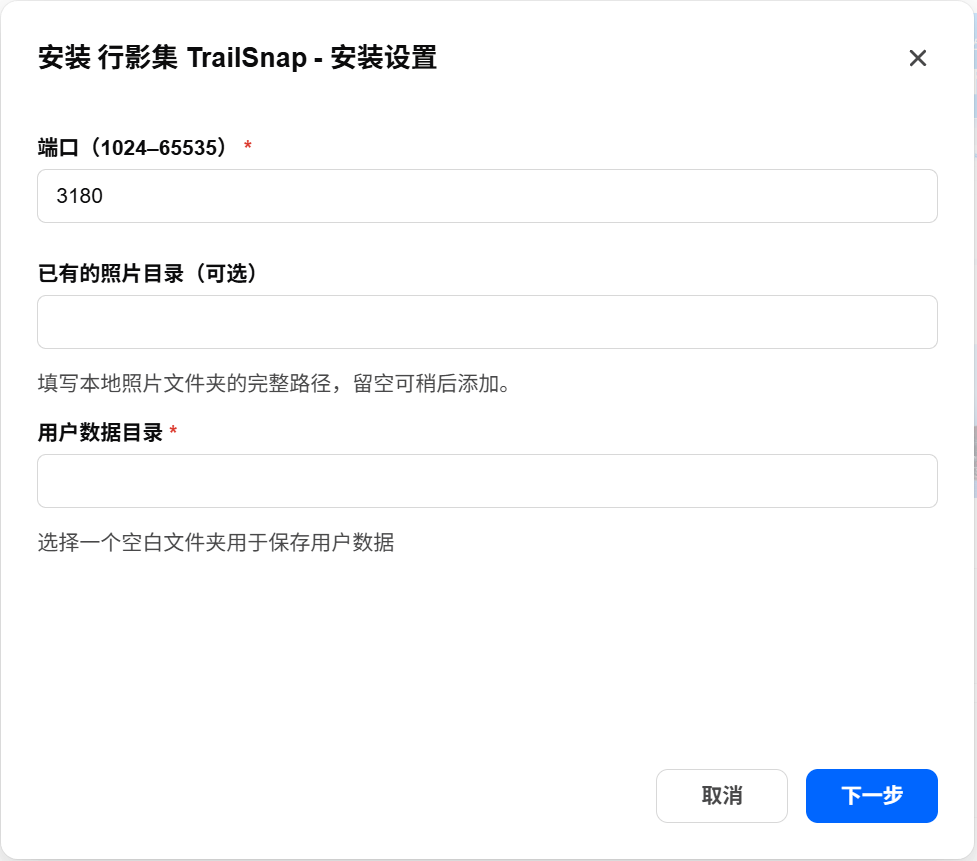
- Complete the installation. The first installation downloads the required container images, so internet access is needed.
- Click Open and create your own TrailSnap administrator account. Other devices can connect at
http://NAS-address:port, for examplehttp://NAS-address:3180.
If the latest release has no .fpk asset yet, use the fnOS Docker guide.
Migrate an existing Docker deployment
Package revision 17 and later accepts ordinary existing database passwords. Direct adoption requires PostgreSQL 18, user and database name trailsnap, and PGDATA=/var/lib/postgresql/data/pgdata. Other major versions require a logical database migration; never edit PG_VERSION.
Stop all old Compose services normally and disable their automatic startup. Back up the complete data directory, Compose configuration, and external originals while stopped, preserving ownership and permissions. Keep data/ and pg_data/pgdata/ under the selected user data directory. Do not use down -v or start both deployments against the same database files.
Create runtime/postgres.env in that directory, with these three lines. Replace the password with the old deployment's actual expanded password, literally, without quotes or URL encoding. Empty and multiline passwords are unsupported. Restrict access to this file (chmod 600).
POSTGRES_DB=trailsnap
POSTGRES_USER=trailsnap
POSTGRES_PASSWORD=trailsnapCreate runtime/installation.json, adjusting the example paths:
{
  "appname": "trailsnap",
  "revision": 3,
  "layout": "catalog-v1",
  "port": 3180,
  "data_dir": "/vol1/1000/TrailSnap",
  "photo_dir": "/vol1/1000/Photos",
  "extra_dirs": [],
  "libraries": [
    {"source": "/vol1/1000/Photos", "target": "/app/Photos", "read_only": true}
  ]
}Each target must exactly match the old container photo mount, either /app/Photos or a child path. List each additional mount in libraries and its source in extra_dirs. Other mount layouts are outside this guide. Do not rescan or rewrite photo paths. Select the parent directory /vol1/1000/TrailSnap as user data during installation, and the same primary photo folder. Stored port and mount settings are retained. Grant application data/photo access while preserving PostgreSQL file ownership.
Install a TrailSnap version at least as recent as the old deployment. Sign in with your existing account and verify counts, albums, people, originals, videos, and uploads. If asked to create an account, stop and check the data path. Keep the old configuration and backup without restarting the old containers. Database upgrades may require restoring the backup to roll back.
Initialization errors appear in the installation dialog. A nonempty directory requires the two runtime files above; credential/configuration errors require checking the actual password and JSON fields. A postmaster.pid error requires a normal database shutdown, not deleting a live lock. Check directory permissions and image registry connectivity for permission/download errors. For authentication failures after startup, check the actual old password: editing this file does not change the database password. Inspect trailsnap-fnos-postgres and trailsnap-fnos-server logs, and redact credentials before requesting help.
Connect existing photos
In TrailSnap, open Settings → Photo folders (照片文件夹), refresh the detected folders, select your photo folder by name, and choose Add selected libraries and scan. Photos appear as scanning progresses.
Source folders default to read-only. Read-write access allows application operations such as uploads, moves, and deletion of originals, subject to NAS permissions. Connecting a folder does not automatically move its photos into the user data folder.
Add, authorize, and disconnect folders
- In fnOS, open App Center → Installed → TrailSnap → Application settings → Runtime settings → Edit.
- Enter one or more full NAS paths separated by semicolons (
;) in New photo folders, select read-only or read-write access for this batch, and Save and restart. - Refresh Settings → Photo folders (照片文件夹) in TrailSnap, select the folder, and add it for scanning.
Existing folders show their NAS paths and current access. Choose read-only, read-write, or Remove for each folder. Removing a mount preserves originals; first remove the corresponding library within TrailSnap if you also want to clean up indexes. NAS ACLs must allow the requested operations.
Only name collisions add (2), (3), and so on. Reconnecting a path restores its previous target. Legacy mount paths remain unchanged. Native access authorizations can still connect folders automatically; runtime-setting changes take priority for those folders.
Find uploaded originals
Uploads appear on TrailSnap's Photos page. To find their original files in the NAS file manager, open the user data folder you selected during installation, then:
data/users/<user-ID>/uploadsFiles are grouped by year and month. Do not manually change database, configuration, or thumbnail files. Back up the complete user data folder and your original photo folders.
Update TrailSnap
Packages are currently distributed through GitHub Releases. Once listed in the fnOS application marketplace, reviewed updates can also be obtained through App Center.
For a manual update, download the new .fpk and upload it through App Center → Manual installation. Do not uninstall first. Updates retain your port, data folder, and connected libraries. The upgrade hook backs up the databases and configuration before updating. Reopen TrailSnap and confirm that you can sign in and view your photos.
Early 0.19.1-2 adaptation packages require migration assistance. If an update reports backup or directory-permission errors, keep the existing application and data and ask for help through the feedback platform. Do not bypass the error by uninstalling and reinstalling.
Uninstalling does not intentionally clear your selected user data or external photo folders. Keep an independent backup. Check database compatibility before attempting a downgrade.